

Set up sign-up restrictions
How to configure signup restrictions for generic & disposable email domains
Sign-up restrictions help you maintain data quality and prevent abuse by controlling who can create accounts in your application. This is particularly important for B2B applications where you need to ensure users have legitimate business email addresses rather than personal or temporary accounts.
These restrictions automatically block registrations and invitations from two types of email addresses:
- Generic email domains - Public email providers like
@gmail.com,@outlook.com, or@yahoo.comthat anyone can use - Disposable email addresses - Temporary email services often used for spam, trial abuse, or avoiding accountability
When enabled, these restrictions apply to both direct signups and organization invitations, ensuring consistent policy enforcement across your application. This prevents users from creating multiple trial accounts, maintains clean analytics, and ensures your user base consists of verified business contacts.
The following diagram illustrates how sign-up restrictions work:
How restrictions affect invitations
Section titled “How restrictions affect invitations”- Any user with a disposable email domain cannot sign up to create a new organization and cannot be invited to any existing organization.
- Any user with a public email domain cannot sign up to create a new organization and cannot be invited to any existing organization.
Set sign-up restrictions
Section titled “Set sign-up restrictions”-
Navigate to sign-up restrictions settings
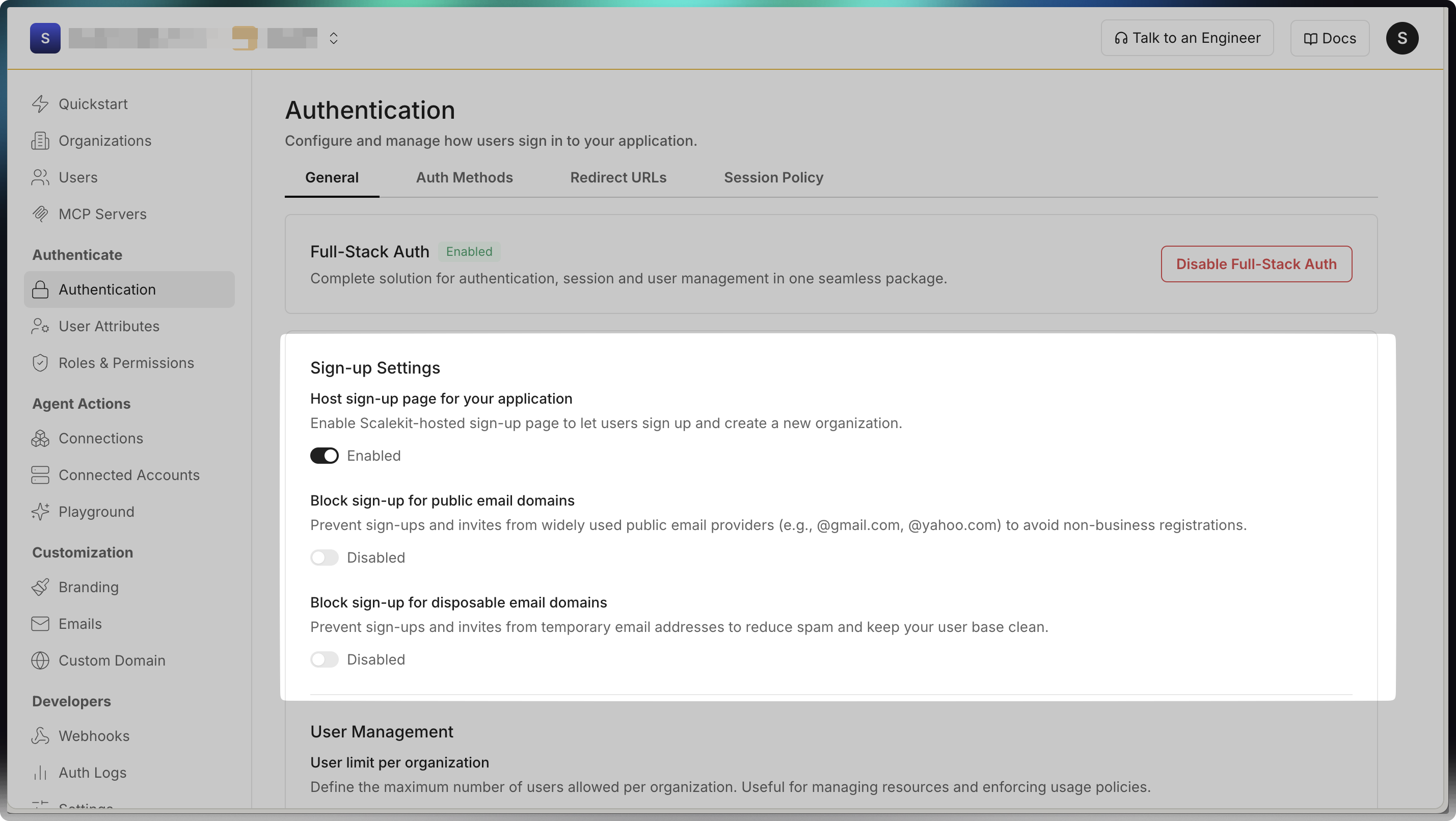
Section titled “Navigate to sign-up restrictions settings”Go to Dashboard > Authentication > General and locate the sign-up restrictions section.
-
Configure restriction options
Section titled “Configure restriction options”Toggle the following options based on what suits your application:
- Block disposable email domains: Prevents temporary/disposable email addresses from signing up or being invited
- Block public email domains: Prevents generic email providers like Gmail, Outlook, Yahoo from creating organizations
-
Save your settings
Section titled “Save your settings”Click Save to apply the restrictions. Changes take effect immediately for all new signups and invitations.